Running Facebook and Instagram ads without proper conversion tracking can make it difficult to understand where your advertising budget is going.
You might see hundreds of clicks in Meta Ads Manager, but how many of those visitors actually submit a form, book an appointment, or purchase a product?
That's where Meta Pixel and Conversions API come in.
These tools help businesses measure what happens after someone interacts with an advertisement. They also provide information that Meta can use to optimize campaigns toward meaningful actions.
But installing a tracking code isn't enough. You need to configure the right events, check that they work, and avoid counting the same conversion twice.
In this guide, you'll learn how to set up Meta Pixel in 2026, connect it to your website, configure conversion events, and use Conversions API to support more reliable advertising measurement.
What Is Meta Pixel?
Meta Pixel, formerly known as Facebook Pixel, is a tracking tool that helps businesses understand how people interact with their websites.
It works through a small piece of JavaScript code installed on your website.
When someone visits a page or completes a tracked action, the Pixel can send information about that event to Meta, subject to applicable privacy settings and consent requirements.
For example, the Pixel can help measure when someone:
- Visits a website.
- Opens a product page.
- Adds a product to their cart.
- Starts checkout.
- Submits a lead form.
- Completes a purchase.
These actions are called events.
Businesses can use event information to understand advertising performance, create eligible remarketing audiences, and optimize campaigns toward relevant results.
For example, an online store can track purchases instead of measuring success through website clicks alone.
Similarly, a service business can track completed inquiry forms and use those leads to evaluate its advertising performance.
How Does Meta Pixel Work?
Meta Pixel tracks website activity through the visitor's browser.
Here's a simple example.
Imagine someone sees your Facebook ad for a home cleaning service and clicks on it.
They visit your website, explore your services, and submit a quote request.
If tracking is configured correctly and the necessary permissions are in place, Meta may receive events representing the website visit and completed inquiry.
You can then review conversion activity and evaluate how your advertising campaigns contribute to customer inquiries.
The basic process looks like this:
- A visitor opens your website.
- Meta Pixel loads in the browser when permitted.
- The visitor performs an action, such as submitting a form.
- The relevant event is sent to Meta.
- The event information becomes available for measurement and eligible campaign optimization.
However, browser-based tracking has limitations.
Privacy restrictions, ad blockers, browser settings, and consent choices can prevent certain events from being recorded.
That's one reason businesses also use Meta Conversions API.
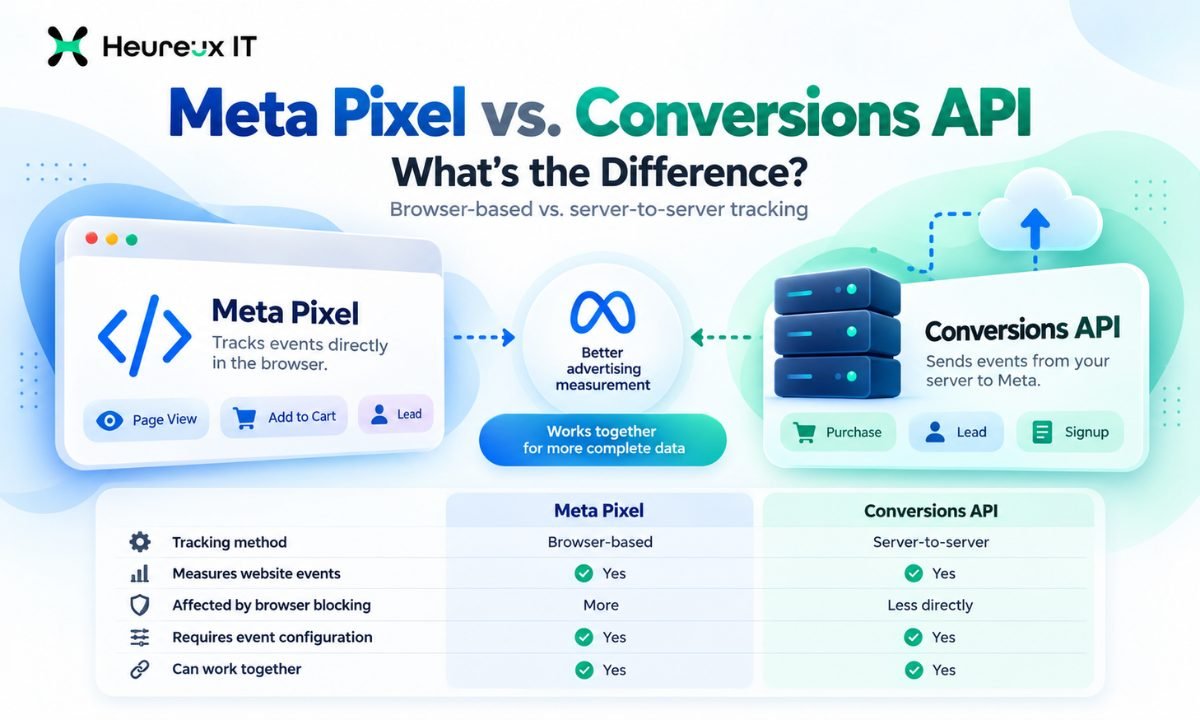
Meta Pixel vs. Conversions API: What's the Difference?
Meta Pixel and Conversions API both support advertising measurement, but they collect and send events differently.
Meta Pixel is browser-based tracking, while Conversions API supports sending events through a server or approved integration.
| Feature | Meta Pixel | Conversions API |
|---|---|---|
| Tracking method | Browser-based | Server-to-server |
| Implementation | Website code or integration | Server or partner integration |
| Measures website events | Yes | Yes |
| Affected by browser blocking | Yes | Less directly |
| Requires event configuration | Yes | Yes |
| Can work together | Yes | Yes |
| Requires privacy compliance | Yes | Yes |
Why Use Meta Pixel and Conversions API Together?
Suppose a customer completes a purchase on your website.
The browser Pixel may send a Purchase event to Meta.
Your website's server or ecommerce integration may also send a Purchase event through Conversions API.
Using both methods can provide more complete event information than relying on browser-based tracking alone.
However, both sources must be configured carefully.
Otherwise, the same purchase could be recorded twice.
This is where event deduplication becomes important.
It's also worth remembering that server-side tracking does not override a visitor's privacy choices or guarantee that every conversion will be recorded.
How to Set Up Meta Pixel in 2026
You don't need to be a developer to create a Meta Pixel.
However, installation requirements depend on your website platform and how you want to track events.
Before starting, make sure you have access to your business's Meta Events Manager and the website or tag management system where tracking will be installed.
Step 1: Open Meta Events Manager
Sign in to your Meta business account and open Events Manager.
Select Connect Data, choose Web, and continue with the setup process.
This is where you'll create and configure the data source used to receive website events.
Step 2: Create Your Meta Pixel
Enter a name for your Pixel.
Use a descriptive name associated with your business or website.
For example:
Heureux IT - Website Pixel
Select the option to create the Pixel.
Meta will assign a unique Pixel ID that identifies your website tracking setup.
Keep this ID available because you may need it when connecting your website or configuring events.
Step 3: Choose Your Installation Method
Meta provides different installation options depending on your website.
You may be able to use a partner integration, install the Pixel manually, or work with a developer.
A partner integration is often the simplest option when your website platform supports it.
Manual installation provides more control but may require technical knowledge.
If you plan to use both Pixel and Conversions API, select the appropriate combined setup option when it is available.
Step 4: Install the Meta Pixel on Your Website
For a manual installation, you'll need to add the Pixel's base code to your website.
The base code should load on the pages you want to track.
On many websites, this means adding it through a site-wide header template or tag management system.
The actual installation process depends on your website platform.
Meta Pixel Setup on WordPress
If your website uses WordPress, you can install the Pixel through a compatible integration or Google Tag Manager.
Use one primary installation method to reduce the risk of duplicate tracking.
After installation, publish your changes and test the Pixel.
Meta Pixel Setup on Shopify
For Shopify stores, a supported Meta integration may simplify Pixel installation and ecommerce event tracking.
Connect the appropriate Meta business assets and configure the available customer data-sharing settings.
Depending on your configuration, the integration may also support Conversions API.
Avoid installing a second copy of the Pixel if an existing integration already handles the same tracking.
Meta Pixel Setup Using Google Tag Manager
Google Tag Manager can help you manage tracking without editing your website's code for every event.
You can create a Meta Pixel tag, enter the correct Pixel ID, and configure the trigger.
For a standard website-wide installation, the base Pixel is typically configured to load across the relevant pages.
Before publishing, use Tag Manager's preview mode to confirm that your tags behave as expected.
Step 5: Test the Meta Pixel Installation
After installing the Pixel, open Meta Events Manager and select your data source.
Use the Test Events section to check whether Meta is receiving website activity.
Open your website and perform a test action.
For example, visit the homepage and confirm that the PageView event appears.
You can also use Meta Pixel Helper, a browser extension that helps identify Pixel installations and detect some common implementation issues.
A correctly installed base Pixel should receive the expected events when browser settings and consent permit tracking.
How to Set Up Meta Pixel Events
Installing Meta Pixel is only the first part of the process.
You also need to configure the events that matter to your business.
What Are Meta Pixel Events?
Events represent actions that people complete on your website.
Meta supports standard events for common activities such as purchases, lead submissions, and checkout actions.
The events you choose should match your business goals.
| Event | What It Measures | Common Use |
|---|---|---|
| PageView | Website page visit | General website activity |
| ViewContent | Important page or product viewed | Ecommerce and service pages |
| AddToCart | Product added to cart | Ecommerce |
| InitiateCheckout | Checkout process started | Ecommerce |
| Purchase | Completed transaction | Online sales |
| Lead | Completed lead action | Lead generation |
| CompleteRegistration | Completed registration | Sign-ups |
| Contact | Contact interaction | Service businesses |
| Schedule | Appointment scheduled | Booking-based businesses |
Tracking every possible event isn't necessary.
Focus on actions that help you understand customer behavior and advertising performance.
Setting Up Lead Tracking
Suppose your website contains a contact form.
You want Meta to record a Lead event only after someone successfully submits the form.
There are several ways to do this.
One option is to trigger the event when the customer reaches a dedicated thank-you page.
Another option is to configure an event based on a confirmed successful form submission.
Be careful with simple button-click tracking.
Someone might click the Submit button without successfully sending the form because a required field is missing.
If your tracking records that click as a lead, your reports could overstate actual inquiries.
The event should represent a completed action rather than an attempt.
Setting Up Purchase Tracking
For ecommerce websites, Purchase events should fire when an order is successfully completed.
A properly configured Purchase event can include information such as the transaction value and currency.
For example, if a customer completes a $150 order, the Purchase event should reflect the correct transaction value.
Accurate purchase tracking helps businesses measure sales-related advertising performance and return on ad spend.
Make sure the event does not fire again simply because the customer refreshes a confirmation page.
Your tracking setup should prevent accidental duplicate purchases.
How to Set Up Meta Conversions API
Conversions API allows businesses to send eligible marketing events to Meta through a server or supported integration.
It can complement Meta Pixel by providing an additional method of transmitting conversion information.
Step 1: Choose a Conversions API Setup Method
Open your Meta Events Manager setup and review the available Conversions API options.
Depending on your website, you may be able to choose:
- Partner integration.
- A supported Meta-enabled setup.
- Manual implementation.
Businesses using established ecommerce platforms may find partner integrations easier to manage.
Custom websites may require additional server configuration or developer support.
Step 2: Connect Your Website or Server
If you're using a supported partner integration, follow the platform's setup process.
If you're implementing Conversions API manually, you'll need to configure the required server connection and authentication securely.
Keep API access tokens private and never expose them in publicly accessible website code.
Step 3: Configure Server Events
Decide which website events should also be sent through Conversions API.
For an ecommerce store, these might include AddToCart, InitiateCheckout, and Purchase.
For a service business, you might prioritize Lead, Contact, or Schedule events.
Use consistent event names and parameters across your browser and server tracking.
Step 4: Set Up Event Deduplication
When Pixel and Conversions API send the same event, Meta needs to recognize that both signals relate to one customer action.
Deduplication helps prevent the event from being counted twice.
For events tracked through both methods, the browser and server implementations should share matching event names and event IDs.
For example, if the browser sends a Purchase event associated with a particular transaction, the server should use the corresponding event ID when reporting that same purchase.
The event ID should be unique to the actual event and consistent across both sources.
Step 5: Test Your Conversions API Events
Once your server events are configured, return to Events Manager.
Use Test Events to confirm that Meta is receiving the expected event information.
Check whether events arrive through the browser, the server, or both.
Review available diagnostics for missing parameters, matching problems, or duplicate-event warnings.
Don't assume the setup is working simply because the website is loading normally.
Testing is an essential part of reliable conversion measurement.
Want help turning this into results for your business?
Explore our Meta Ads services →What Is Event Match Quality in Meta?
Event Match Quality helps businesses understand how effectively the event information they send can be matched within Meta's systems.
This can be relevant when using Conversions API and eligible customer information.
However, the goal should not be to collect as much personal information as possible.
Only send data that is necessary, permitted, and appropriate for your business.
Where required, customer information must be formatted or hashed according to Meta's specifications.
Review your privacy notice and consent requirements before enabling additional customer-data parameters.
A strong implementation combines useful event information with responsible data handling.
Common Meta Pixel Problems and How to Fix Them
Even after installation, tracking issues can affect your advertising reports.
Here are some common problems to look for.
Meta Pixel Is Not Detected
If your Pixel isn't detected, the base code may be missing, blocked, or installed incorrectly.
Check the installation method, confirm the correct Pixel ID, and review your consent settings.
Use Events Manager and Pixel Helper to troubleshoot.
PageView Works but Leads Aren't Tracking
This usually means your base Pixel is installed, but the Lead event hasn't been configured correctly.
Check the actual form submission process.
Make sure the event fires after a successful submission rather than just a button click.
Purchase Events Are Being Counted Twice
Duplicate purchases may occur when tracking is installed through multiple methods or when browser and server events aren't deduplicated properly.
Review your website's Pixel installation and the relevant Conversions API event IDs.
Also check whether confirmation-page reloads are triggering additional events.
Meta Shows Fewer Conversions Than Your Website
Differences between Meta reports and website transactions can happen for several reasons.
Attribution settings, reporting delays, consent choices, browser restrictions, and event configuration can all contribute.
Review the data carefully before assuming that tracking is broken.
Conversions API Events Are Missing
If the browser Pixel works but server events aren't arriving, check your Conversions API connection.
Review authentication, event names, required parameters, server responses, and available diagnostics.
For manual integrations, developer assistance may be necessary.
Best Practices for Meta Pixel and Conversions API in 2026
A reliable tracking setup requires more than installing code once.
Follow these practices to keep your measurement useful.
Track Meaningful Conversions
Choose events that reflect your actual business goals.
For a lead generation business, a completed form submission is generally more useful than an ordinary page visit.
For ecommerce, completed purchases are more valuable than clicks alone.
Avoid Duplicate Tracking Installations
If your website already uses a partner integration, review its capabilities before adding manual Pixel code.
Multiple installations can lead to duplicate events and confusing reporting.
Use Consistent Event Parameters
Make sure your browser and server events represent the same actions.
For ecommerce, check purchase values, currency, product information, and event IDs.
Follow Privacy and Consent Requirements
Respect the privacy choices visitors make on your website.
Review the applicable legal requirements, your privacy notice, and Meta's data-sharing rules.
Server-side tracking should not be used to bypass consent restrictions.
Review Tracking After Website Updates
Website redesigns, checkout changes, new forms, and plugin updates can affect event tracking.
Whenever you make a significant website change, test the relevant events again.
A tracking setup that worked several months ago may not work correctly after a major website update.
How Meta Pixel Improves Facebook Ads Measurement
Meta Pixel helps businesses move beyond surface-level advertising metrics.
Instead of focusing only on impressions and clicks, you can evaluate whether your ads lead to meaningful actions.
Imagine two campaigns with the following results.
| Metric | Campaign A | Campaign B |
|---|---|---|
| Ad Spend | $400 | $400 |
| Website Clicks | 300 | 180 |
| Recorded Leads | 5 | 16 |
| Cost Per Lead | $80 | $25 |
Campaign A generates more clicks, but Campaign B generates more leads for the same amount of money.
With properly configured conversion tracking, you can identify this difference and make more informed budget decisions.
However, remember that Meta's attributed conversions aren't always identical to your business's confirmed leads or sales.
For stronger reporting, compare advertising data with your CRM, ecommerce platform, or customer records.
When Should You Hire a Professional for Meta Pixel Setup?
Basic Pixel installation can be straightforward, particularly when your website has a supported integration.
More advanced configurations can become technical.
You may need additional help if:
- Your website uses custom forms or checkout flows.
- Purchase values aren't tracking correctly.
- Multiple Pixels are installed.
- Conversions API events aren't arriving.
- Browser and server events aren't deduplicating.
- Your reported leads don't match actual submissions.
- Your website uses multiple domains or external booking platforms.
For businesses investing regularly in advertising, accurate conversion tracking is an important part of campaign management.
At Heureux IT, we help businesses work with Meta advertising campaigns, conversion tracking, and performance measurement.
Explore our Facebook Ads Management Services to learn more about improving your advertising setup and campaign performance.
Final Thoughts
Learning how to set up Meta Pixel is an important step toward understanding what happens after someone clicks your Facebook or Instagram advertisement.
But reliable tracking takes more than adding a piece of code.
You need to configure meaningful events, test your setup, and make sure your conversion data reflects actual customer actions.
For businesses using both Meta Pixel and Conversions API, correct event deduplication is particularly important.
When your tracking is configured properly, you can make better decisions about campaign budgets, targeting, and optimization.
The goal isn't simply to collect more events. It's to collect reliable information that helps your business understand and improve advertising results.
If you need assistance with Meta advertising or conversion tracking, explore Heureux IT's Facebook Ads Management Services.
Frequently Asked Questions
What is Meta Pixel used for? +
Meta Pixel helps businesses measure website activities, such as page visits, leads, and purchases. This information supports advertising reporting, eligible audience creation, and campaign optimization.
Is Meta Pixel free? +
Meta does not charge a separate fee to create and use Meta Pixel. However, installation, developer work, server hosting, or third-party integrations may involve additional costs.
Can I install Meta Pixel without coding? +
Yes. Many website platforms support partner integrations that simplify Pixel installation. Custom websites and more advanced tracking configurations may require technical assistance.
Is Facebook Pixel the same as Meta Pixel? +
Yes. Facebook Pixel is the former name of Meta Pixel. The updated name reflects Meta's broader advertising ecosystem, including Facebook and Instagram.
Do I need Conversions API if I already have Meta Pixel? +
Conversions API isn't mandatory for every website, but it can complement browser-based Pixel tracking. Using both methods with appropriate deduplication may provide more complete conversion information.
Can Meta Pixel track form submissions? +
Yes. You can configure the Lead event to record successful form submissions. The exact implementation depends on how your website forms work.
Why is my Meta Pixel not tracking purchases? +
Possible causes include missing Purchase event configuration, incorrect triggers, privacy restrictions, or problems with the website's checkout integration. Use Events Manager to test the purchase process.
What is event deduplication? +
Event deduplication prevents the same website action from being counted twice when Meta receives matching events from the Pixel and Conversions API.
Does Conversions API bypass ad blockers? +
Conversions API sends events through a server rather than relying entirely on a visitor's browser, so it is less directly affected by browser blocking. However, it must still respect consent requirements and cannot guarantee complete tracking.
How do I know if my Meta Pixel is working? +
Check the Test Events section in Meta Events Manager and perform relevant actions on your website. You can also use Meta Pixel Helper to inspect browser-based tracking.
_________________________________________________________________________
Tech Stuff
Heureux IT is a digital marketing agency specialising in Google Ads, Meta Ads and SEO. We help growing businesses turn paid and organic search into measurable revenue.